Data migrations
DSH Settings → FileSnap → Data migrations is the shared entry across versions. Choose a task, scan legacy data, review the session list, then confirm. Closing Settings does not undo completed migrations; scan again after an interruption to discover remaining work.
Since 0.3.1, plugin startup runs registered migrations by default (autoMigrate: true). Compatible data is skipped; loaded sessions wait for a later launch or a manual retry. Settings shows this run's in-memory results without custom conversation events. Stop other DSH processes sharing the same log directory, or set autoMigrate: false and migrate manually with those processes stopped.
branch-status-titles-v1 converts the session's own latest legacy ↩ title to 🔴 Inactive · by appending a native DSH session/title revision. Existing events and inherited boundaries remain unchanged. Ordinary titles do not imply an active branch; subsequent successful rewind/redo sets both branch status markers.
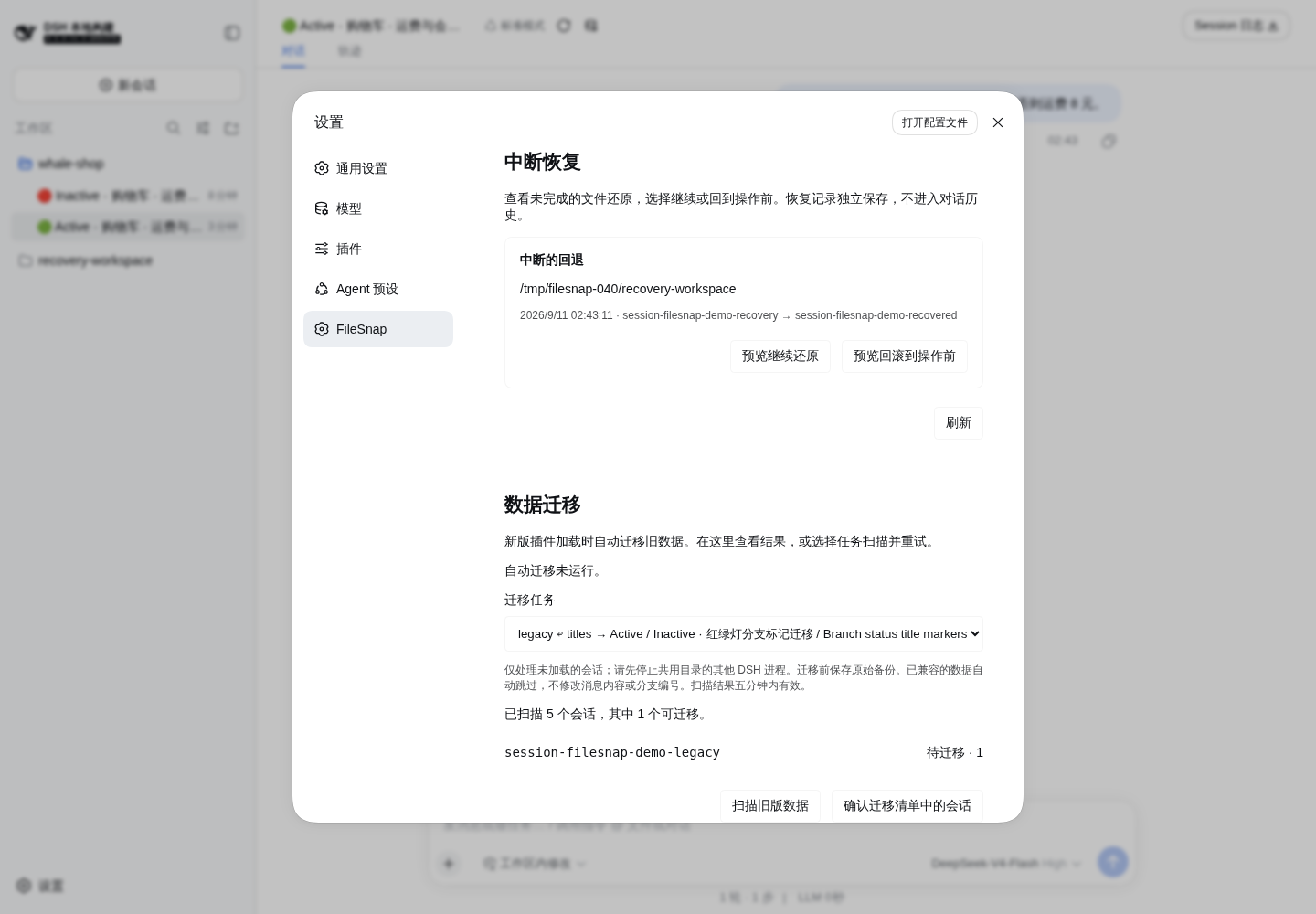
This 0.4.0 demo deliberately disables automatic migration to preserve an eligible sample. Normal installations enable automatic migration by default; the status shown in the screenshot does not represent the default setting.
Included task#
legacy-session-events-v1: compatibility migration from older plugin builds and early previews to 0.3.0+.
Older builds stored filesnap/point, filesnap/rewound and filesnap/redone in conversations; the early preview build also stored filesnap/reply. Without the plugin, DSH may refuse these unknown events. Migration adds ignorable: true to their historical envelopes while preserving messages, sequence numbers, inherited fork boundaries and other plugins' events. Old records remain to preserve existing references. This release writes no further custom events and keeps no separate operation journal.
Scanning uses the current host's session persistence service. This task supports JSONL and .jsonl.zstd artifacts. Scanning performs no writes. The list distinguishes ready, loaded, failed and unsupported sessions; already-compatible sessions are skipped.
Confirmation and backups#
- Confirmations expire after five minutes and are single-use. The file digest is checked again before writing; changed logs require a fresh scan.
- Loaded sessions are excluded. Close them and scan again; if still loaded, restart DSH and visit Settings first. Publication of a target session is fenced during migration.
- Each changed log gets a
.before-filesnap-migration-<id>backup beside it. A synced temporary file is atomically renamed over the original. - Zstd artifacts keep their separate header frame. Multiple compressed frames are decoded without truncating the log.
- Each session reports success, skip or failure independently. Re-scan after completion; transformations are idempotent.
- To roll back, stop DSH processes using the store, then replace the original artifact with the reported backup. Do not manually overwrite a live log.
Adding future versions#
Register tasks in src/migrations.ts. Each has a stable task id, source/target version descriptions and an idempotent transform. New migrations share the same catalogue, scan, confirmation, backup and result UI.
The current runner handles independent session JSONL artifacts. A future engine-store or different-backend migration needs its own source adapter and validation; it must not be treated as a session-log repair.
When the UI cannot start#
The package includes an offline repair tool that does not load the plugin. Stop every DSH process using the directory first. --root names the DSH session-log directory, not FileSnap's snapshot directory.
node lib/migrate-session-logs.js --root /path/to/dsh/sessions
node lib/migrate-session-logs.js --root /path/to/dsh/sessions --write --dsh-stopped
The first command scans; the second backs up and repairs. The tool is in the installed plugin's lib/ directory, or run npm run build in a source checkout first.