How to rewind a DSH conversation and restore files with FileSnap
Install the dsh-filesnap plugin for DeepSeek Harness, restore a conversation and tracked files together, and reverse a rewind with /redo.

DSH Rewind & Redo — by FileSnap is a DeepSeek Harness rewind plugin. Install it as dsh-filesnap to restore a conversation and its tracked files together. It preserves the original conversation in a branch, and /redo reverses the rewind. No Git repository is required. The filesnap Rust engine handles storage; dsh-filesnap adds DSH turn integration and Web UI controls. This is unrelated to the App Store app File Converter — FileSnap.
中文教程 · Compare DSH rewind plugins
We maintain dsh-filesnap. This guide describes 0.2.2, reviewed on September 9, 2026. The screenshots come from an existing 0.2.2 Web UI session on a DSH 0.1.2-rc.1 local build; this article does not certify later host releases.
Compared with SiriLee’s dsh-rewind-plugin 0.9.1, this documented release adds /redo and broader whole-file content reuse across paths, retained versions and sessions sharing one store. See our versioned comparison and seven storage cases; the other plugin offers in-place and conversation-only rewind.
Integration experience across Codex, DSH and Pi
FileSnap’s snapshot design originated in our published codex-rewind distribution (codexr). The independent engine now powers the DSH integration dsh-filesnap and the Pi extension pi-better-rewind-redo. As of September 10, 2026, the DSH release is 0.2.2 with filesnap ^0.4.0; Pi’s release is 0.1.1 with filesnap 0.5.0; codex-rewind is 0.151.0-rewind.0 and retains its own related inlined snapshot module.
These releases provide concrete experience integrating conversation turns, file recovery and redo across coding assistants. Codex retains its inlined implementation, while DSH and Pi use different standalone engine versions; compatibility and validation scope are documented per project.
Public versions, source and validation scope.
Full walkthrough at 1.5× speed
This 2-minute-29-second walkthrough keeps the full screen recording, with video and original narration accelerated together to 1.5×. Only waiting and a little repeated explanation are removed. It follows file setup, deletion, rewind, the preserved original conversation, /redo, and another rewind to an earlier point. Redo returns to the pre-rewind state, which deletes the file again in this example.
Install in the Web UI profile
Use Node.js ^22.19 or >=24, on Linux, macOS, or Windows, with x64 or arm64. The package includes its native FileSnap engine; a Rust toolchain is unnecessary.
Uninstalling the plugin does not delete conversation logs or workspace files. One current limitation: sessions containing plugin records require reinstalling the plugin before they can be reopened in DSH. Starting a source checkout with pnpm dsh can produce the same event-registration error; use a built or npm-installed CLI. See the installation and troubleshooting documentation.
dsh plugin --profile web add dsh-filesnapThe command installs the available package version. To reproduce this guide’s package version, use dsh-filesnap@0.2.2 instead. Restart the Web UI profile after installation. Version 0.2.2 declares a bundle, so you do not need to add a loader row manually.
Upgrading from 0.2.1 or earlier? Remove the old manually added id: filesnap entry from your profile’s cordis.patch.yml before starting 0.2.2. Otherwise the bundle and old entry conflict.
1. Capture a change before you need to undo it
Start in a disposable workspace. Ask the agent to create a small file, then edit it in another turn. Wait for each turn to finish. For a recovery exercise, ask it to delete that file in a later turn.
FileSnap must have captured the earlier state before it can restore it. Installing after an accidental deletion cannot recover an uncaptured historical version.
Hover a completed assistant reply to reveal the rewind control. Read its tooltip: it names the target and the snapshot coverage. Do not infer the target solely from where the button sits.
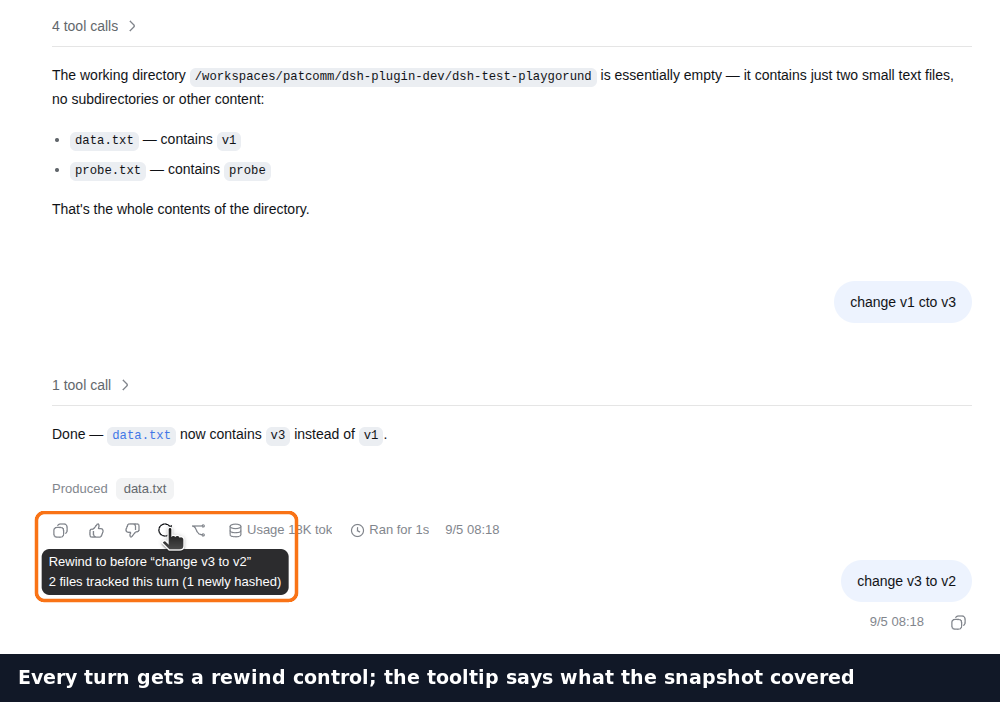
The screenshots show a separate example session that edits data.txt; your turn numbers and file counts will differ.
2. Choose an explicit restore point
Enter the following command in the conversation to list captured points:
/rewind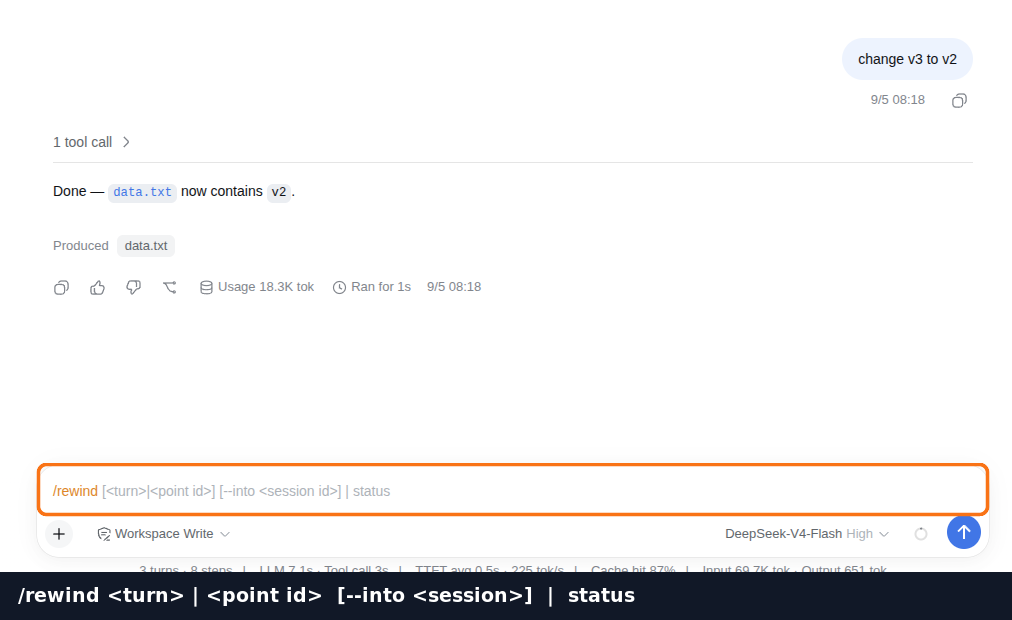
Use a displayed turn number or point ID. For example, only if turn 2 is the target shown in your session, enter:
/rewind 2This means restore the state before that target turn, not “go back two turns.” Choose a point before the deletion to recover the captured file. Rewind writes into your actual workspace, so start this exercise with disposable files and wait for the agent to stop working.
The Web UI rewind button opens the resulting child conversation. A typed /rewind command returns its session ID; open that child yourself if the UI remains in the original conversation.
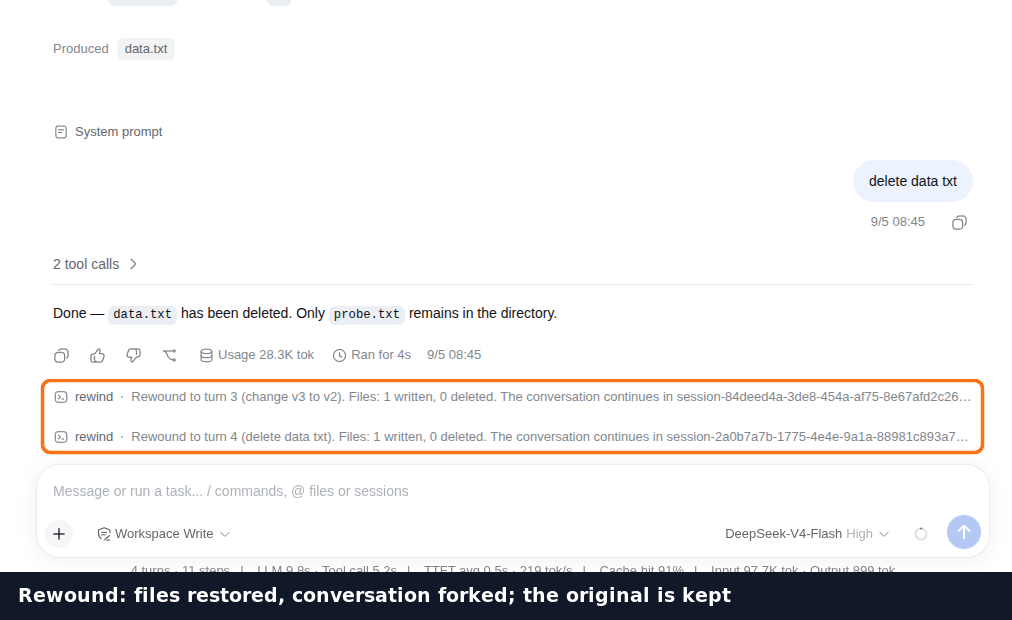
3. Understand what the fork preserves
The original conversation remains available. The child continues from the selected point, and the session list marks the conversation you left with an arrow.
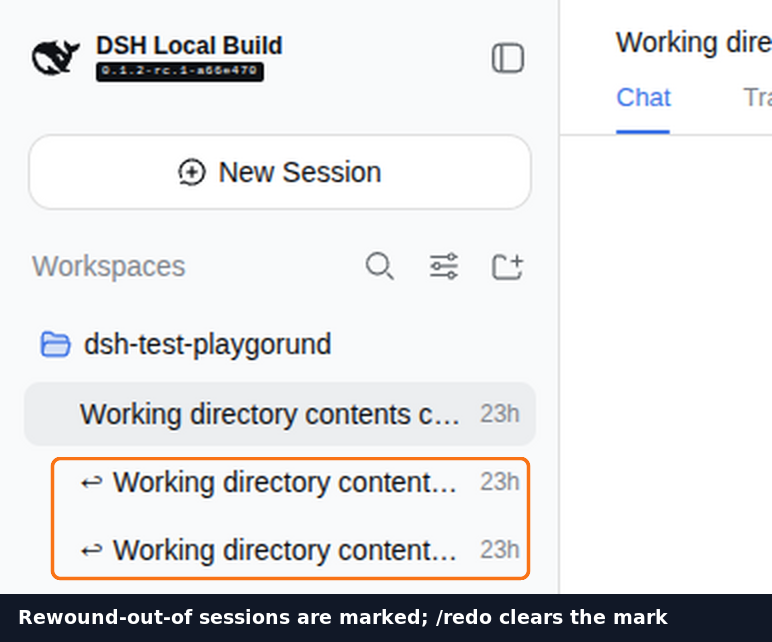
The two conversations share one physical workspace. A conversation fork is not an isolated Git worktree or a second directory. Restoring files affects that directory; changing conversations does not automatically swap independent copies of the files.
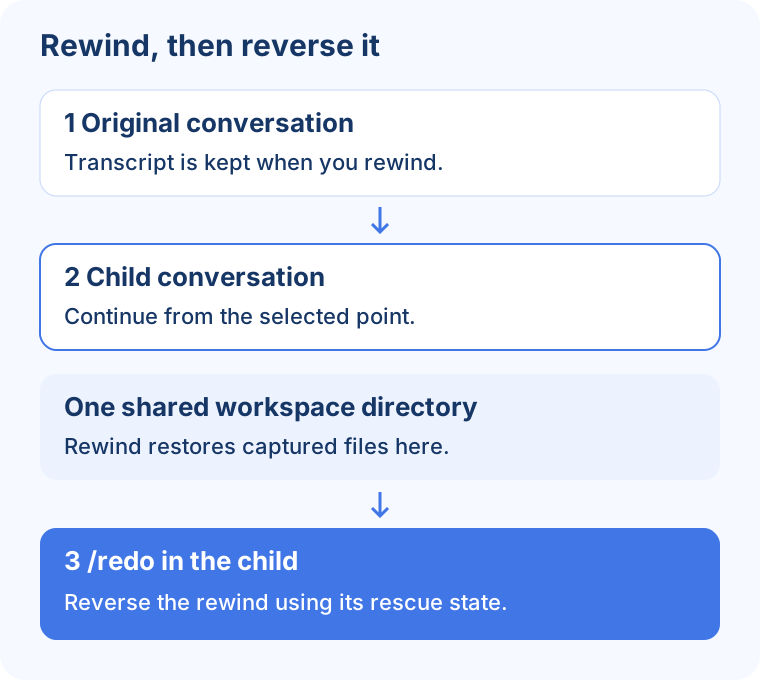
4. Picked the wrong point? Reverse the rewind
Before doing more work, enter this in the child conversation:
/redoIt reverses the rewind using the rescue state captured before the restore and returns the original conversation as the continuation target. Follow the returned session if using the command path.
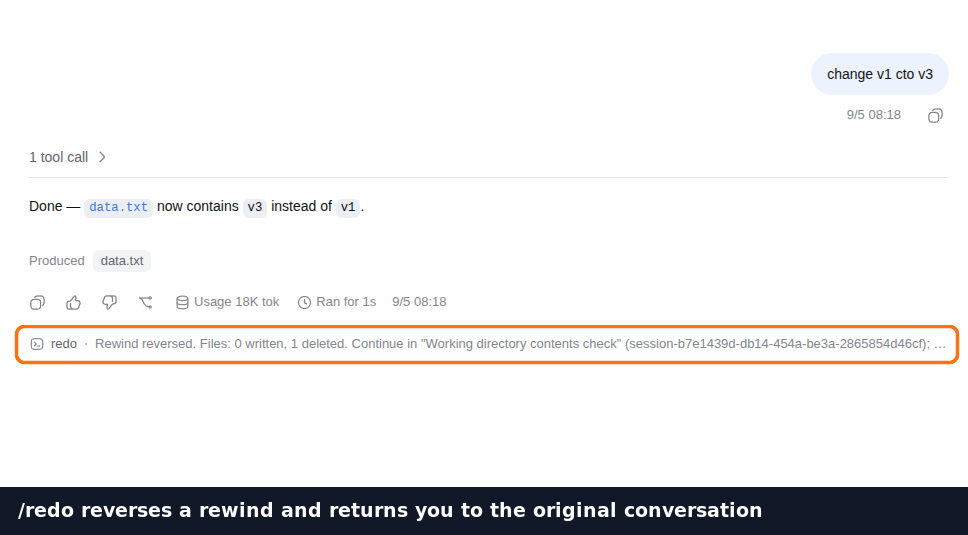
Redo also restores files. In the deletion exercise, that means the file can be deleted again: you are returning to the state immediately before the rewind, not applying an extra recovery operation. Trying this before new edits makes the effect easy to understand.
5. Check what is covered
/rewind status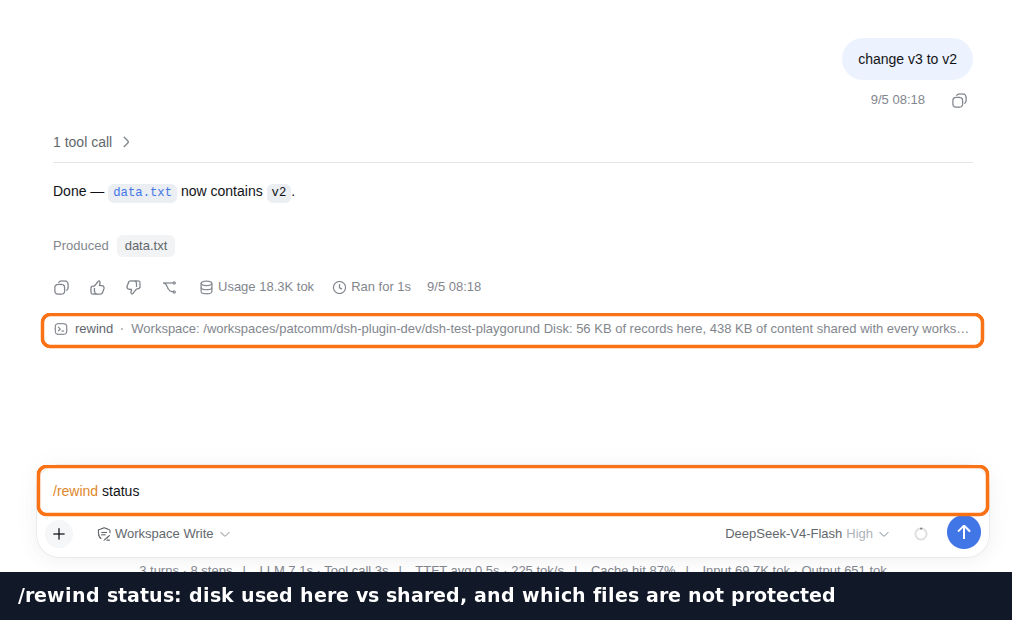
Capture combines known paths, paths observed through DSH’s ctx.fs writes or edits, and a bounded scan for recent workspace changes. Observed paths can include files outside the project root. The bounded scan helps cover shell changes, but it is not an unlimited backup of everything a shell command might touch.
.filesnapignore exclusions apply to capture and restore. Unreadable, oversized, and other excluded paths can be outside protection; inspect the status output and the target’s coverage. Current status is not proof that an old snapshot contains a particular file. See the capture and restore architecture.
What to try next
The useful test is a complete loop: capture a file → change or delete it → rewind to its earlier state → redo the rewind. Check the file on disk and which conversation you are in at each step.
If staying in the same conversation matters more than keeping a branch, read our versioned plugin comparison. For installation updates and issue reports, use the project repository and npm package.